Overheating solution for laptop
Symptom:
Computer crashes, freezes
Solution:
Clean out air vents, put filtered material over the inhalation vent, or update BIOS
Overheating can rob your laptop of performance and often cause a host of
hiccups, such as system crashes and freezing. Every computer generates
lots of heat, but laptops are especially susceptible to overheating due
to their small size and lack of ventilation. Excessive dust can clog air
vents and deprive your system of cold air to cool off the CPU. You can
often solve overheating issues simply by cleaning out these air vents
with a cloth or keyboard cleaner.
To prevent further dust buildup, place a piece of filtered cloth, say
from a Swiffer, over the inhalation vent. Don't place one over the
exhaust vent, as that's where hot air is supposed to flow out of the
system quickly. If the cloth doesn't work, you may want to update your
system's BIOS, which controls the laptop's hardware. Most manufacturers
offer an installation file that updates BIOS files automatically, which
often address heat management. Just make sure that your notebook is
connected to the power supply when updating the BIOS.


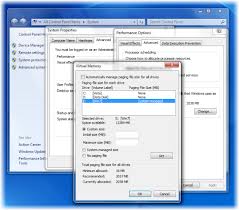 New computers today usually have a minimum of 512MB of memory installed
with WiFi networking capability, but when the total of temporary details
that needs storing surpasses the memory they write some of it the hard
disk. The space used to allocate this is known as virtual memory. If
this space has not been set up correctly, it will start to complain.
It's usually best to let Windows decide how much virtual memory should
be available. In order to do this, right-click on My Computer and select
Properties. Select on the Advanced tab, under Performance, click the
Settings button. Click on the Advance tab once more and, at the bottom,
click Change. Make sure that the 'System managed size' option is
selected and click the Set button. Finally, click OK and restart the PC.
New computers today usually have a minimum of 512MB of memory installed
with WiFi networking capability, but when the total of temporary details
that needs storing surpasses the memory they write some of it the hard
disk. The space used to allocate this is known as virtual memory. If
this space has not been set up correctly, it will start to complain.
It's usually best to let Windows decide how much virtual memory should
be available. In order to do this, right-click on My Computer and select
Properties. Select on the Advanced tab, under Performance, click the
Settings button. Click on the Advance tab once more and, at the bottom,
click Change. Make sure that the 'System managed size' option is
selected and click the Set button. Finally, click OK and restart the PC.
 What is the first thing you will do after you plug your PC and found out
that it has no lights, no beeps, no fan noise and no hard drive noise?
Check your PC if it was plugged in! Let's say all connections are okay
after you've double check, the first culprit here is the power
connector. Check if the power connector is functioning. Also check for
any rat or animal bite impressions on the connector, sometimes animal
bite cuts wire connections. The second culprit here is the AVR or UPS;
fuse maybe blown. The third culprit here is the Power Supply; you can
find this on the back-top of the PC.
What is the first thing you will do after you plug your PC and found out
that it has no lights, no beeps, no fan noise and no hard drive noise?
Check your PC if it was plugged in! Let's say all connections are okay
after you've double check, the first culprit here is the power
connector. Check if the power connector is functioning. Also check for
any rat or animal bite impressions on the connector, sometimes animal
bite cuts wire connections. The second culprit here is the AVR or UPS;
fuse maybe blown. The third culprit here is the Power Supply; you can
find this on the back-top of the PC.


