starclick

Monday, 1 April 2013

Connecting Front Panel Connectors - Power Switch, Power LED, HDD LED and Reset Switch

Front Panel Connectors are come with cabinet. These connectors are connected to Motherboard.

Front Panel Connectors are Power SW, Power LED, HDD LED and Reset SW. In Assembling process These connectors are connected to motherboard pins. There is a front panel pins on motherboard.

Here is the chart to connect front panel connectors. 6 and 8, both pins are power sw pins. so you can connect power sw to 6,8 pins.  Power LED connector has two wires. 2 and 4 pins are power LED pins. so you can connect 2,4 pins to power LED. but LED has + (plus) and - (minus) pins. 2 is +(Plus) pin, 4 is -(minus) pin. so you can connect power LED green wire to pin 2, white wire to pin4. Pins 1 and 3 for HDD LED and pins 5 and 7 for Reset SW.

Latest motherboards have On board speaker. so no need to connect speaker. but old model motherboard and systems have speaker and speaker pins. speaker pins are near to front panel connectors.  it is a four pin connector.

For more details refer motherboard manual.

Removing Thumbs.db Virus

You know thumbs file is a supported file for image files or is it a virus file. We will see these files when we search for images and images folders. Is there any problem with this thumbs.db file? Here I mentioned the solution for this.

Actually it is a supported file but some hackers changed this file in to virus file and it is a hidden file. So if you see this thumbs.db file in your images folder, you must delete it.
To delete these files, in search box search as thumbs and delete all thumbs files. But it is wasting of time, because this file won’t delete completely on images folder. So the one and only way to delete all the files is using annihilator software. Download from below url.
 
optionalreaction.com/software/annihilator-thumbs.db

Power Supply and SMPS Problems

 SMPS and SMPS problems, all are know SMPS is a main power supply to give power to all the parts inside the CPU. Some times you have face SMPS related problems. So here I mentioned some SMPS related problems and their solutions.

Your system has any SMPS problems, then your CPU parts will be in danger, so whenever your system faces any hardware problem, You check your SMPS first.

System restarting problems will rise with defective SMPS. You face any restarting problems with your system, first you check your SMPS and repair it. You face continous restaring problem, then check your system with another SMPS. Replace your SMPS to solve the problem.

Power ups (High Voltage) and downs (Low Voltage):

Power ups and downs problem is the first problem to all SMPS problems. Your system faces with power ups and downs problem, then SMPS will damage immediately. Other than other computer parts such as motherboard, hard disk drive, and CD or DVD writers will damage. Sometimes it will happen, but this type of situations sometimes SMPS fuse will gone. So check your SMPS, if it is problem with fuse, open the SMPS and replace the fuse to solve this problem. If you’re SMPS burned with power ups and downs, then replace your SMPS.

SMPS wattage problems:

SMPS wattage problems are very rare problems. This problem will rise when you add another hard disk drive and CD or DVD drives. When you connect additional hard disk drive, then our hard disk drive won’t be detected. If you have this type of problem you must replace SMPS to solve this problem.

How many ways to reset your CMOS BIOS

Problem with CMOS BIOS is one of the common problems, like Passwords, CMOS checksum bad errors and booting problems. Solution is reset the CMOS BIOS. So this post is how to reset your CMOS BIOS.


Maximum problems with CMOS BIOS due to CMOS battery failed. So first you have to replace your battery, and then you reset your CMOS BIOS. Here I mentioned some ways to reset the CMOS BIOS.

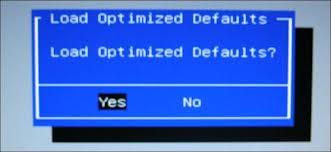
    First is direct way to reset CMOS BIOS. Go to BIOS setting and select load optimized default option, and save setting options to reset your CMOS BIOS.see figure img1
    Second way is using jumper pins. In your Motherboard, there is CMOS jumper pins, insert jumper in 2nd and 3rd pins and start your system. If you have a latest motherboard, in your monitor there is a massage, reinsert CMOS jumper to 1 and 2 pins.see figure img2

    One more way is remove CMOS battery, and unplug power card also for 1 minute. After 1 minute reinsert battery and start your system. see img3


    Last is inset your CMOS battery in opposite direction and power on the cpu. After that power off the cpu and reinstall the battery into normal direction. Then start the system. This is also one of the ways to reset your CMOS BIOS.

- img1

Problem with Using Multiple RAMs

 Sometimes system will automatically restarting or hanging by using multiple RAMs. Won’t we use multiple RAMs? Then why motherboards have more than one RAMs slots? to solve this problem, this post is for you.

There are so many types of RAMs and their speeds, DDR, DDR1, DDR2, and DDR3. Here we discuss about using multiple RAMs. Actually problem is not with using multiple RAMs, problem with speed.
Increasing or upgrading RAM capacity is two types. One is inserting new RAM instead of old RAM and second is inserting new RAM with your old RAM. There is no problem with using new RAM instead of old RAM.
 
All are facing problem with this second case, using multiple RAMs. Before you insert your new RAM, you have to check the new RAM speed; both your RAMs are in same speed. If you’re old RAM speed is 633Mhz, then you insert only 633Mhz new RAM. So if you have faced any problem with two RAMs, first you have to check your RAMs speed.

Reasons for all Restarting Problems

 So many reasons for system restarting problems. May be the problem with SMPS (Switching Mode Power Supply) or RAM (Random Access Memory) or Motherboard or loose contact of Processor Fan or System Crash or improper shutdown. So this post is reasons and solutions for this restarting problem.


One of the reasons is system improper shutdown, to solve this problem check the previous posts “SolvingImproper Shutdown Problem”. One important point is “don’t skip Scandisk at startup”.


Other reasons are defective hardware parts; first you have to check your processor Fan. Is it properly inserted or any loose contact or missing locks of Processor Fan? If problem is not with Processor Fan, then check you’re RAM. Check your system with another RAM to know the problem with RAM or not. Maximum restarting problem comes from RAM.


Problem is not solved, after you check your system with another RAM. At same way check your system power supply (SMPS). If problem is not with SMPS. Then you send your motherboard to warranty or repair.

Motherboards and Motherboard problems

Day by day lot of motherboard companies and different type of motherboard Models are coming. At the same time Motherboard problems are also common. So here are some general motherboard complaints and solutions.


Motherboard complaints are depends on your computer usage. Main reason is overheating for all types of motherboard complaints. Problems are display complaint, hanging, restarting, battery and CMOS BIOS problems.

    If you get errors like date and time not set or CMOS battery fail or floppy disk error, then you need to change CMOS battery. if you get the same problem after you changed the battery, then you upgrade or install CMOS software.
    If you get display problems or booting problems, then you have to reset your CMOS BIOS. If not, just send your motherboard for warranty or repair. May be problem with North or south bridge.
    If you get restarting problems, then you check the power supply and Processor Fan for loose contact or properly inserted or not.
    If you get hanging or blue screen problem, then you send your motherboard for warranty or repair. They replace filters on board and fix this problem. 


Every Admin Should Know These Commands Active Directory 1.   To quickly list all the groups in your domain, with members, run this c...